How to trigger a ScriptRunner action from native Automation
Share on socials

How to trigger a ScriptRunner action from native Automation
Ever wanted to combine the convenience of native Automation with the bespoke automations of ScriptRunner? Read on below to find out how!
Jira's native Automation is a powerhouse for streamlining workflows and for in-depth, bespoke automations there’s no substitute for ScriptRunner for Jira Cloud.
Now, imagine a world where both could work together, a world where you’re about to save a boat-load of time. Now stop imagining, because after reading through this tutorial you’ll realise this world is real and you’re living in it right now.
By combining the accessibility of Jira Automation with the power of ScriptRunner for Jira Cloud, you can create seamless, high-performance workflows.
What does it do?
- A native Automation rule is configured with a trigger, an action button for example, which updates a hidden custom field.
- A Listener is configured in ScriptRunner to capture that specific hidden custom field updated event.
Why should I do it?
- You can have an action button available for all workflow statuses.
- For complicated parts of automation requirements, it’s easier to use scripted logics in ScriptRunner, especially for actions that are not supported in native Automation.
- With the new Script Manager, this integration also helps reduce maintenance overhead by promoting script reuse across your entire Jira instance.
Note: This is a workaround to bridge native Automation and ScriptRunner. If you'd love to see this built natively into ScriptRunner on Cloud, head over to our suggestion board and cast your vote—every upvote helps shape our roadmap!
Check out our video demo above or read along below!
Check out our other video demos!
Need help configuring ScriptRunner automations? Check out the playlist below for more 'how to' videos.
Implementation
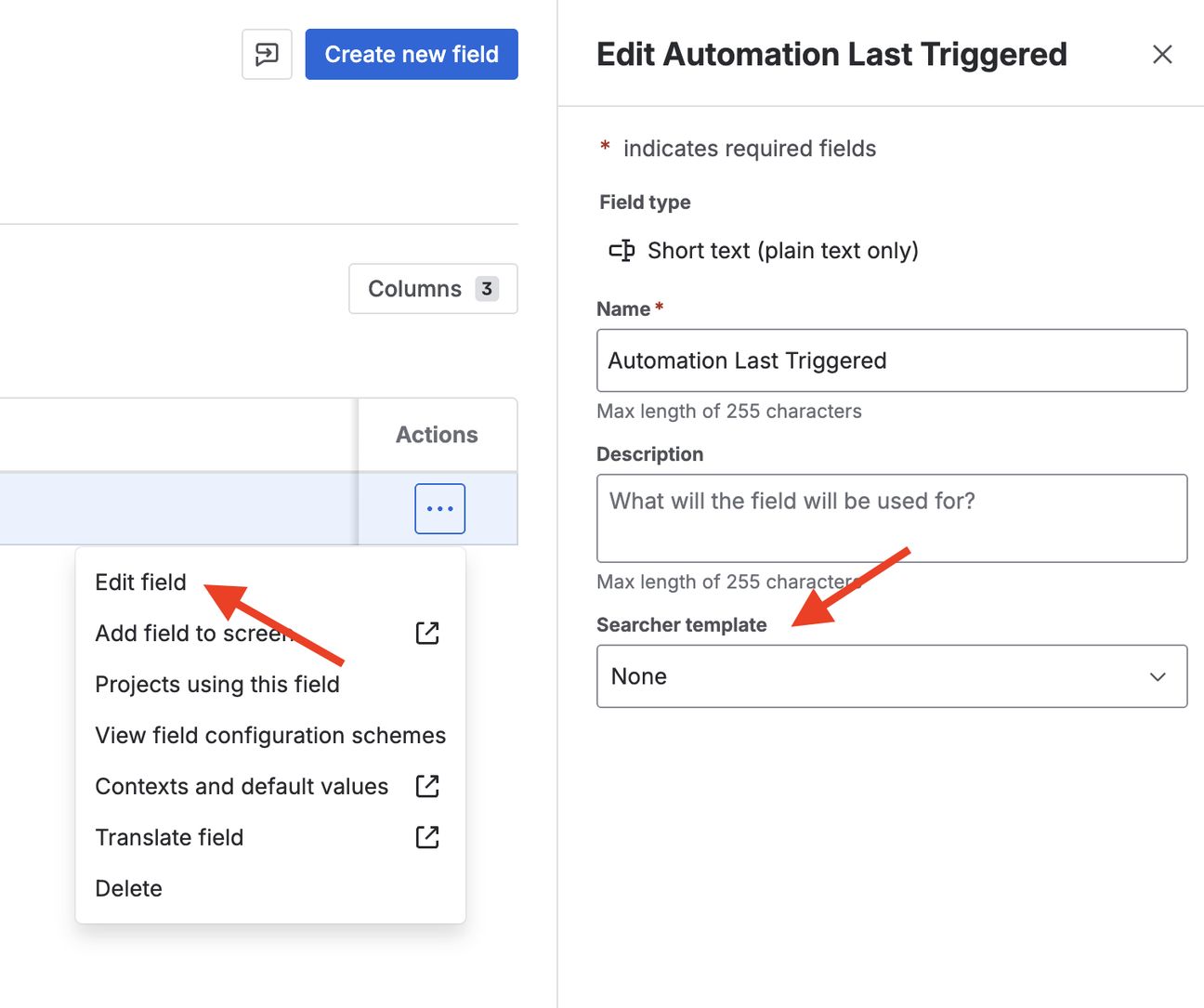
Create a hidden custom field
First, we need a field that acts as a signal wire. We want this to be invisible to users to avoid clutter. We can call it ‘Automation Last Triggered’
- There is no need to associate this to any project.
- Set the Searcher template to None so that its values are not queryable in JQL.
Automation rule
Something to remember:
- It doesn’t have to be an action button, it can be any Automation trigger. The important part is how to pass native Automation execution to ScriptRunner.
- Only steps, (1), (5), (6) are needed if there is no data needed to be passed to ScriptRunner execution.
- Use the ‘Manual trigger from work item’ trigger to create the action button on issue view.

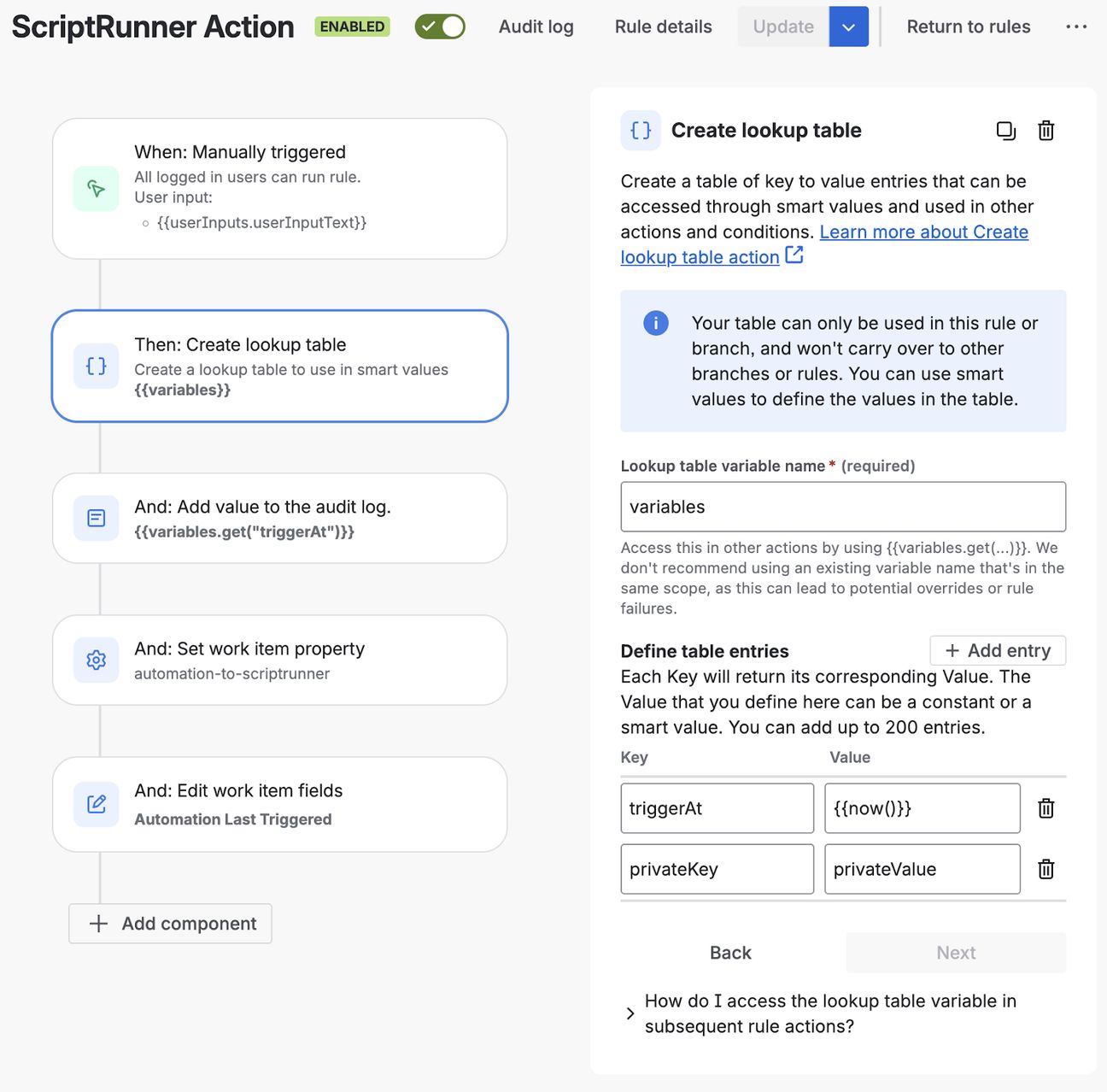
2. Use a lookup table to hold variables. For example,
- Use a smart value, ‘{{now()}}’ saved in ‘triggerAt’, to save the time at which the automation rule triggered.
- A ‘privateValue’ to simulate data processed during automation rule execution needed to pass to ScriptRunner.
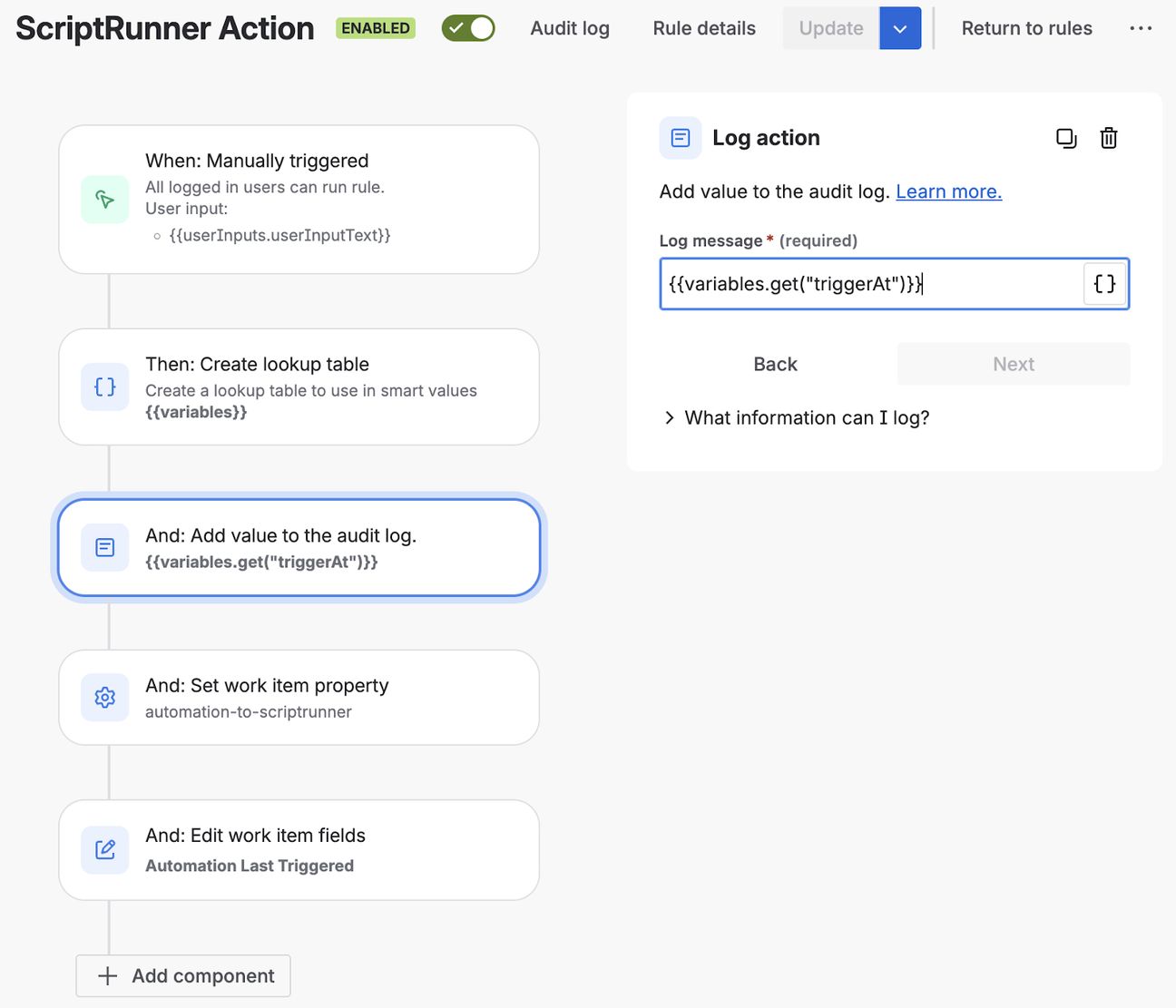
3. Use a Log action to log ‘triggerAt’ saved in the lookup table, in case there is a need for cross referencing logs between native Automation and ScriptRunner, with ‘{{variables.get("triggerAt")}}’.
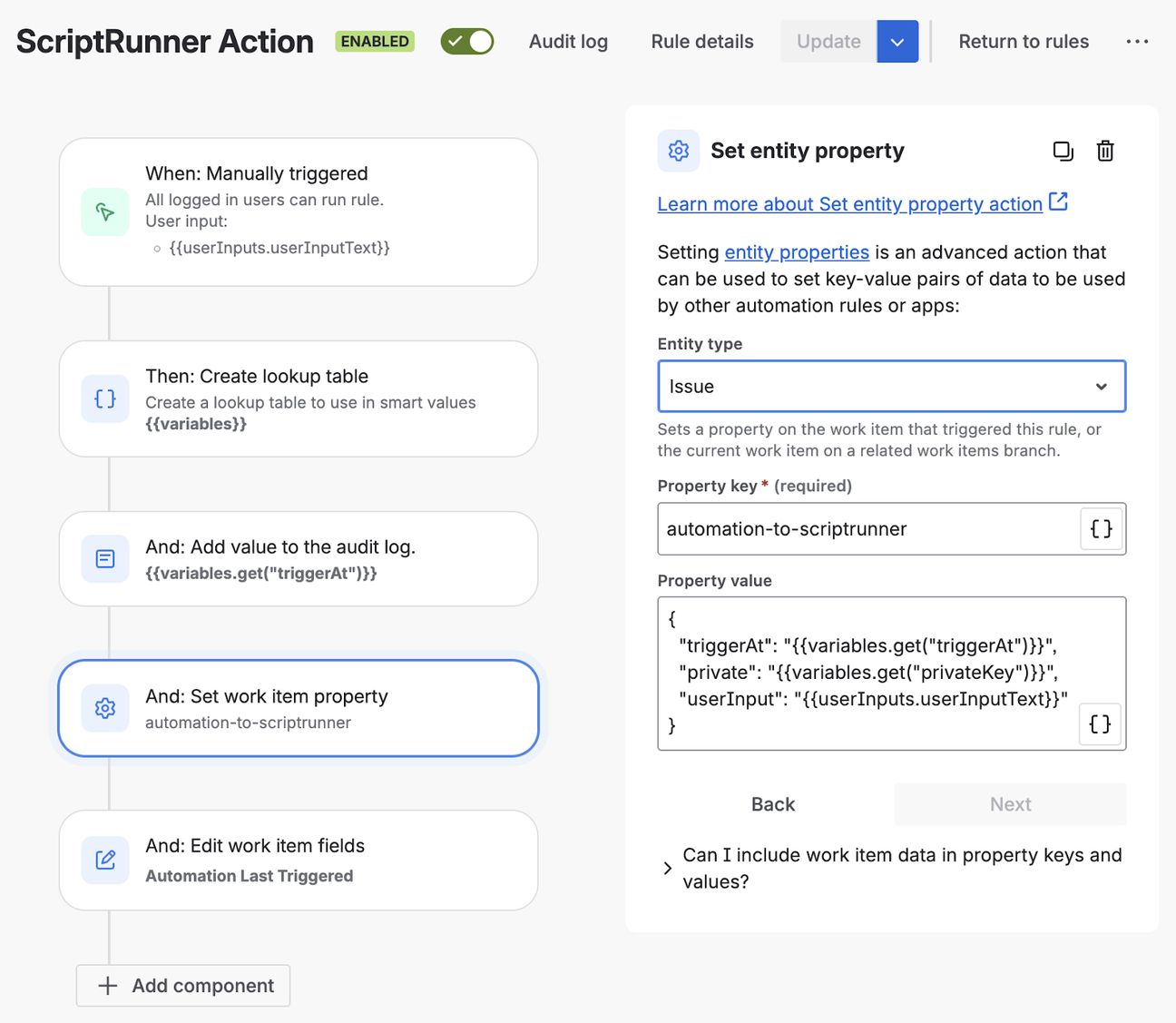
4. Use the set entity property to save data against issue entity type, accessible through ScriptRunner:
- Use any property key: ‘automation-to-scriptrunner’ for example.
- Pass data as property value with JSON format:
{
  "triggerAt": "{{variables.get("triggerAt")}}",
  "private": "{{variables.get("privateKey")}}",
  "userInput": "{{userInputs.userInputText}}"
}
5. Using the edit work item fields action, update the hidden custom field with ‘triggerAt’ saved in lookup table, ‘{{variables.get("triggerAt")}}, or simply {{now()}}’.
Also, make sure to not send notifications.
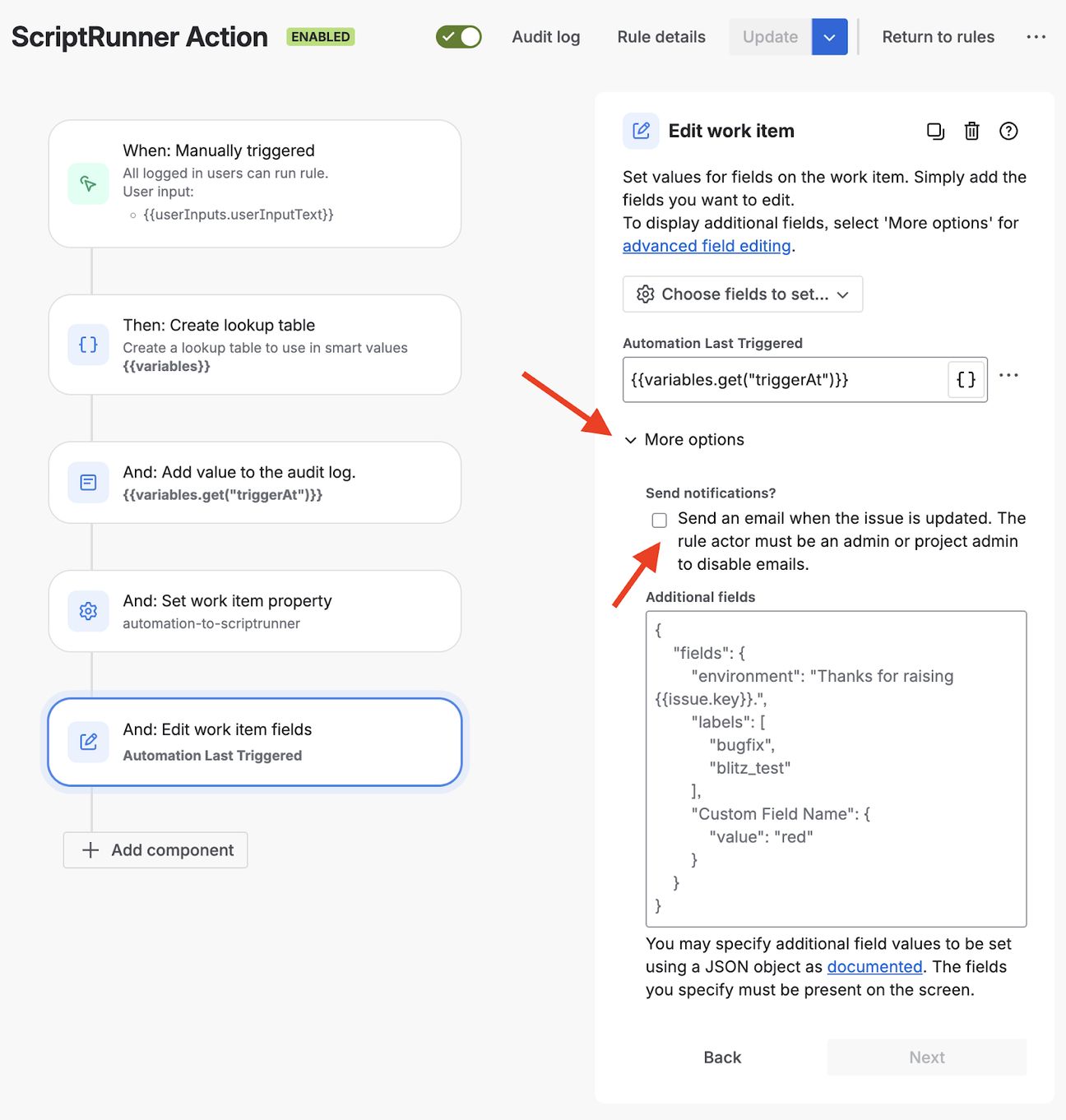
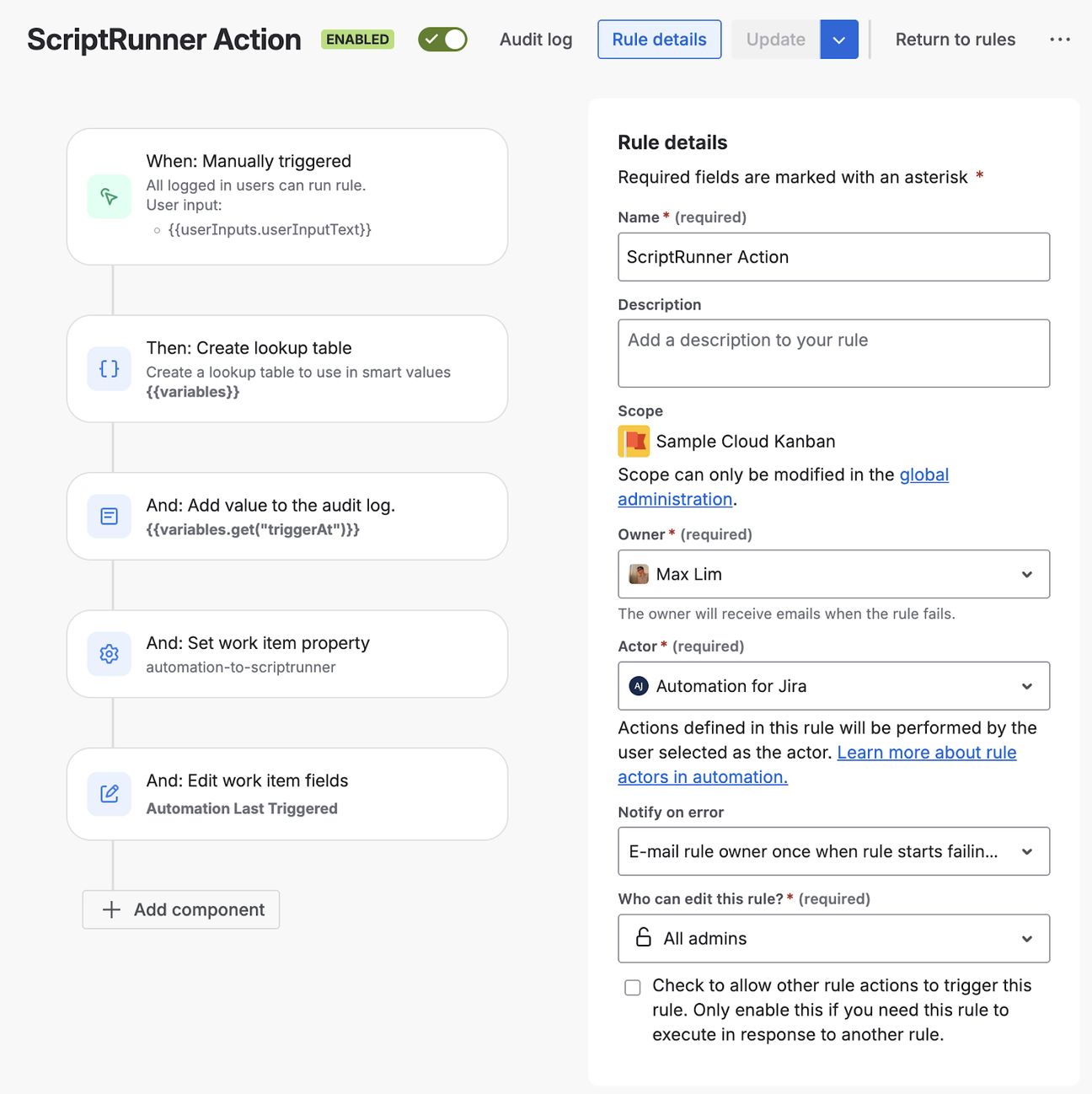
6. Make sure the rule Actor is ‘Automation for Jira’ to update a hidden custom field.
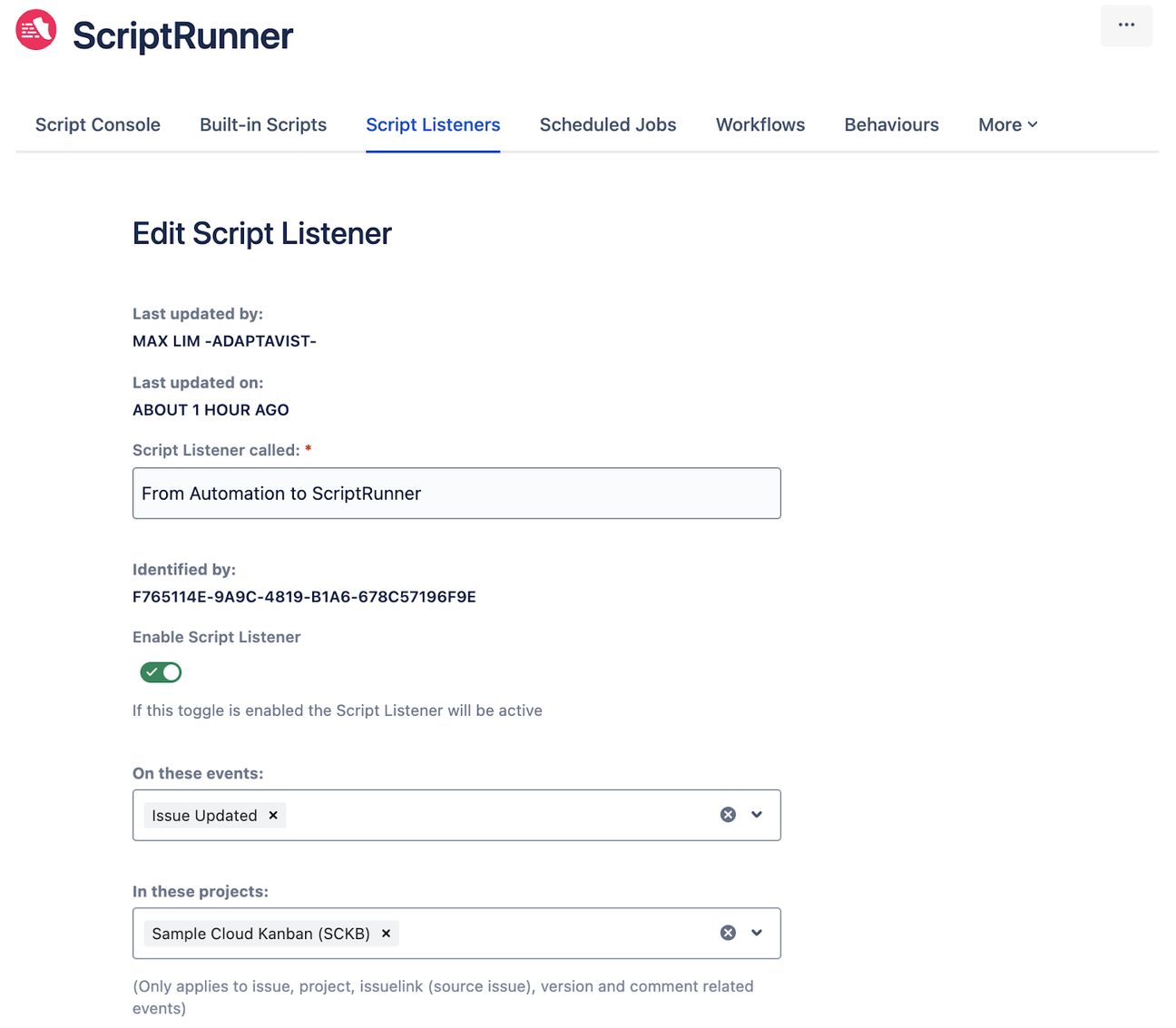
ScriptRunner Listener
- Configure a Listener on the Issue Updated event for appropriate projects:
2. Use a Jira Expression condition to only respond to that specific hidden custom field update:
issue.changelogs[0].items.some(changelogItem =>
    // changelogItem.field == 'Automation Last Triggered'
    changelogItem.fieldId == 'customfield_10631'
)
3. Continue execution with the following script:
Note: Lines 1-19 are not needed if there is no data required from Automation rule execution.
// Lines, 1-19, are not needed if there is no data required from Automation rule
final PROPERTY_KEY = 'automation-to-scriptrunner'

// Atlassian doc on entity properties: https://developer.atlassian.com/cloud/jira/platform/jira-entity-properties/
// Rest API reference on issue properties: https://developer.atlassian.com/cloud/jira/platform/rest/v3/api-group-issue-properties#api-rest-api-3-issue-issueidorkey-properties-propertykey-get
// HAPI way to access entity properties: https://docs.adaptavist.com/sr4jc/latest/hapi/work-with-entity-properties
// Note: These issue properties are saved on Atlassian side, and accessible via API by users with access to the issue, delete them as needed
def getDataResponse = get("/rest/api/3/issue/${issue['id']}/properties/$PROPERTY_KEY").asObject(Map)
def deleteDataResponset = delete("/rest/api/3/issue/${issue['id']}/properties/$PROPERTY_KEY").asString()
assert getDataResponse.status >= 200 && getDataResponse.status < 300 : "${getDataResponse.status}: ${getDataResponse.body}"
assert deleteDataResponset.status >= 200 && deleteDataResponset.status < 300 : "${deleteDataResponset.status}: ${deleteDataResponset.body}"
def entityData = getDataResponse.body['value']
logger.warn " "

logger.warn "********** Data from Automation saved in entity **********"
logger.warn "Trigger at: ${entityData['triggerAt']}"
logger.warn "Private data: ${entityData['private']}"
logger.warn "User input: ${entityData['userInput']}"
logger.warn " "

logger.warn "********** Data accessed from the `issue` variable in this listener script context **********"
logger.warn "Issue key: ${issue.key}"
logger.warn "Trigger at (from context issue): ${issue.fields['customfield_10631']}"
logger.warn " "

// If you want to work with custom field names, instead of custom field ids
// HAPI way to work with issues: https://docs.adaptavist.com/sr4jc/latest/hapi/work-with-issues
def eventIssue = Issues.getByKey(issue.id as String)
logger.warn "Trigger at (with HAPI): ${eventIssue.getCustomFieldValue('Automation Last Triggered')}"

// more logics...
Want some help?
Do you have questions about this tutorial or something else? Book a meeting here and one of our CSMs will help you out!
Published on 30 March 2026
Authors

Max
Share this tutorial